2023年10月25日星期三

Resolving BMW Trouble Code 5E3F with Launch X431 PAD VII

Trouble codes in modern vehicles are designed to alert drivers about potential issues within their vehicles. One such code that BMW owners may encounter is 5E3F, which indicates a problem with the ABS module. In this article, we will discuss how to fix this trouble code using the Launch X431 PAD VII diagnostic tool. With its advanced features and user-friendly interface, the Launch X431 PAD VII can effectively diagnose and resolve the 5E3F code, ensuring a smooth driving experience.

Launch-X431 Diagnostic Tool is able to fix BMW trouble code 5E3F by coding DSC(ABS). Here’s using Launch X431 PAD VII as a demonstration.

Full System Diagnose
BMW >> Automatically search >> Next
To ensure the accuracy of the test results, do the following:
1. Turn off the ignition switch.
2. Wait 10s.
3. Turn on the ignition switch.

There is a fault code in ABS system.
5E3F DSC – steering column switching centre: coding DSC required


How to do DSC(ABS) Coding?
Coding/ program >> Next >> Coding system list >> DSC: ABS(Anti-lock braking system – DSC)
1. Turn off ignition.
2. Wait 15s.
3. Turn on ignition.
4. Code control unit.
Do you do recoding right now? Yes
Recoding has been completed.


Clear Codes
Go back to System List >> ABS >> Continue >> Clear fault code
Clear fault code completed.
Done.
5E3F fault code has gone.


This is how to use X431 PAD 7 to do BMW E90 2006 DSC(ABS) coding successfully.


Conclusion: By utilizing the Launch X431 PAD VII diagnostic tool, BMW owners can effectively diagnose and fix trouble code 5E3F related to the ABS module. Remember to follow the steps outlined in this article and perform the necessary repairs to ensure a safe and reliable driving experience.

2023年10月18日星期三

How to Change the Language on BMW ICOM ISTA-D and ISTA-P

The BMW ICOM ISTA-D (Integrated Service Technical Application - Diagnostic) and ISTA-P (Integrated Service Technical Application - Programming) software are essential tools for diagnosing and programming BMW vehicles. While the default language is often set to German, it is possible to change the language to English or any other supported language. In this article, we will guide you through the simple steps to change the language on your BMW ICOM ISTA-D and ISTA-P software.

BMW ICOM are with multi-language,if you want to change the language,pls let us know when you make the order,or default be english. If you want to change the language after receive goods. how to operate as following:

How to change the ISTA-D language?
ISTA-D Language: Czech, Dutch, French, German, Greek, Italian, Japanese, Korean, Polish, Portuguese, Russian, Spanish, Sweden, Thai, Turkish

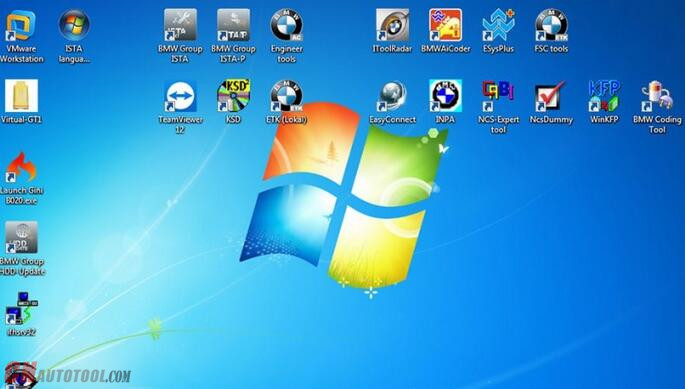
Open the language install folder on the desktop

Extract the language pack you desired, extract install.rar to C:/EC-APPS/ISTA/SQLiteDBs

Click the bmw language fix program on desktop


Open BMW Group ISTA program on the desktop

Select tool tab-client setting
Select the corresponding language

Which language do you want to you can choose,
EXIT ISTA-D and run again,

2: how to change the ICOM ISTA-P Language?
ISTA-P Language:  English, Chinese, Czech, Dutch, French, German, Greek, Indonesian, Italian, Japanese, Korean, Polish,Portuguese, Russian, Spanish, Swedish, Thai, Turkish

Open BMW GROUP ISTA-P on desktop
Click i icon and reset settings

Select Automatic search

Choose which language you want

After choose well you need save setting

Then you can run it again,
If you need want to learn more,you can contact with us: sale@cnautotool.com or you can search on our store: https://www.cnautotool.com

Conclusion: Changing the language on your BMW ICOM ISTA-D and ISTA-P software is a straightforward process that allows you to navigate and utilize these powerful diagnostic and programming tools in your preferred language, such as English. By following the simple steps outlined in this article, you can seamlessly switch the language settings and enhance your BMW servicing experience.

Why BMW ICOM Software Requires Hard Disk Installation

When activating the BMW ICOM software, it is necessary to insert the hard disk into the laptop instead of using a USB cable for connection. This requirement may cause confusion for some customers who are unfamiliar with the process. In this article, we will explain why the hard disk installation is necessary for the BMW ICOM software.


Firstly, it is important to note that if you purchase the BMW ICOM with a laptop that already includes the software, you can use it directly upon receiving it. However, if you only buy the BMW ICOM with the software installed on a separate hard disk, or if you purchase just the software in a hard disk format, additional steps are required for activation.


When activating the software, the customer is typically asked to remove the original hard disk from their laptop and insert the BMW ICOM hard disk into the laptop. This step is crucial because the software is industrial-level and quite large in size. The hard disk contains a Windows 10 operating system, as well as the ICOM software itself. Therefore, it is necessary to replace the original hard disk with the BMW ICOM hard disk in order to activate the software successfully.


The BMW ICOM software package, such as the V2023.09 version, includes ISTA-D and ISTA-P software. ISTA-D supports multiple languages, including English, German, Spanish, French, Italian, Polish, Portuguese, Turkish, Czech, Swedish, Dutch, Greek, Russian, Japanese, Korean, and Thai. Similarly, ISTA-P also supports a wide range of languages, making it accessible to users from different regions.


Moreover, the software is designed to be compatible with almost 95% of laptops worldwide that have Intel chips (I3/I5/I7 series) and at least 4GB of memory. This ensures that users can easily install and use the software on their laptops without compatibility issues.


Additionally, the software package includes TIS and WDS software, which provide repair instructions and circuit diagrams for technicians. Furthermore, bonus engineer software is provided for free, allowing users to perform single module programming. This feature is particularly useful for engineers who require advanced programming capabilities.


In conclusion, the BMW ICOM software requires

2023年10月11日星期三

Troubleshooting BMW E-SYS Common Issues and Solutions

 BMW E-SYS is a robust software tool utilized for coding, programming, and configuring BMW vehicles. Although it is known for its reliability, users may encounter occasional issues or errors that can be frustrating to deal with. In this article, we will discuss the most common issues faced by BMW E-SYS users and provide practical solutions to help troubleshoot and resolve these problems.

E-SYS won’t connect to the vehicle:

One of the most common issues that users face when using BMW E-SYS is that the software won’t connect to the vehicle. This can be caused by a number of different factors, such as a faulty cable, a communication error, or an issue with the vehicle’s settings. To resolve this issue, try the following:

– Check the cable: Make sure that the cable you are using to connect the vehicle to your computer is in good condition and is compatible with your vehicle.
– Check the vehicle settings: Verify that the vehicle settings are configured correctly in E-SYS. You may need to consult the user manual for your vehicle to determine the correct settings.
– Check for communication errors: If you are still having issues, check for communication errors in E-SYS. This can help you identify where the issue is and provide a solution.

Error messages when coding:

Another common issue that users face when using BMW E-SYS is error messages when coding. These messages can be confusing and difficult to understand, but they often indicate a problem with the coding process. To resolve this issue, try the following:

– Verify the coding data: Double-check that the coding data you are using is correct and up-to-date.
– Check for coding conflicts: Make sure that there are no conflicts between the different modules in your vehicle.
– Try a different module: If you are still having issues, try coding a different module to see if the problem persists.

E-SYS crashes or freezes:

E-SYS may also crash or freeze during use, which can be frustrating and lead to lost work. This can be caused by a number of different factors, such as a software conflict, insufficient memory, or a problem with your computer. To resolve this issue, try the following:

– Close other programs: Close any other programs that are running on your computer to free up memory.
– Check your computer specs: Make sure that your computer meets the minimum requirements for running E-SYS.
– Reinstall E-SYS: If all else fails, try uninstalling and reinstalling E-SYS to see if that resolves the issue.

Conclusion:

While BMW E-SYS is a powerful and reliable tool, users may occasionally encounter issues or errors when using it. By following the troubleshooting tips provided in this post, you can identify and resolve these issues quickly and easily. If you are still having issues after trying these solutions, it may be a good idea to consult with a professional or the E-SYS support team for further assistance.

More information about BMW diagnostic tools , please visit bmw trouble repair.


2022年4月11日星期一

BMW ICOM NEXT Firmware Update to V1.44 Guide

 The BMW ICOM Next Professional Diagnostic Tool is the same as BMW ICOM A1/A2/A3 and supports all BMW software and fiber optic programming. This article will show you how to update the BMW ICOM NEXT firmware. Without a firmware update, you may get that the configuration system could not be initialized and the BMW ICOM software is not working.


How to Update BMW ICOM NEXT Firmware to V1.44?

Step 1. Login in ICOM Manager

Run “ITool Radar” to get the IP address “169.254.92.38”.

Go to “169.254.92.38:60080/”.

Enter user name and password to login in ICOM Manager.

Click “Update Firmware”.


Step 2. Flash System Image File

Click “Browse” and load “ICOM-BootImage-01-28-00” bin file.

Select “SYSTEM”on Image type.

Click “Send the file”.

Confirm to write the image file to the flash.

SYSTEM image update successfully.

Step 3. Flash Application Image File

Click “Update Firmware” to go back to firmware update page.

Click “Browse” and load “ICOM-ApplicationImage-01-44-00” bin file.

Select “APPLICATION”on Image type.

Click “Send the file”.

Also confirm to write the image file to the flash.

APPLICATION image update successfully.

Step 4. Reboot

Click “reboot”.

Go to “169.254.92.38:60080/” again.

Login in ICOM Manager.

Now the APPLICATION Image version is updated to V1.44.

Notice:
* The SYSTEM IMAGE and the APPLICATION IMAGE must be updated together, and Do Not reboot the ICOM before updating both of them.
* Firstly send SYSTEM Image file and select “SYSTEM” to flash.
* Then send APPLICATION Image file and select “SYSTEM” to flash.

2017年12月9日星期六

Free download BMW ICOM ISTA-D 4.43.13 ISTA-P 3.71.0.200 (09.2023 )

Free download 09.2023 BMW ICOM diagnostic softwareISTA-D ISTA 4.43.13 ISTA-P 3.71.0.200 on Mega with questions and answers frequently asked.
Download:
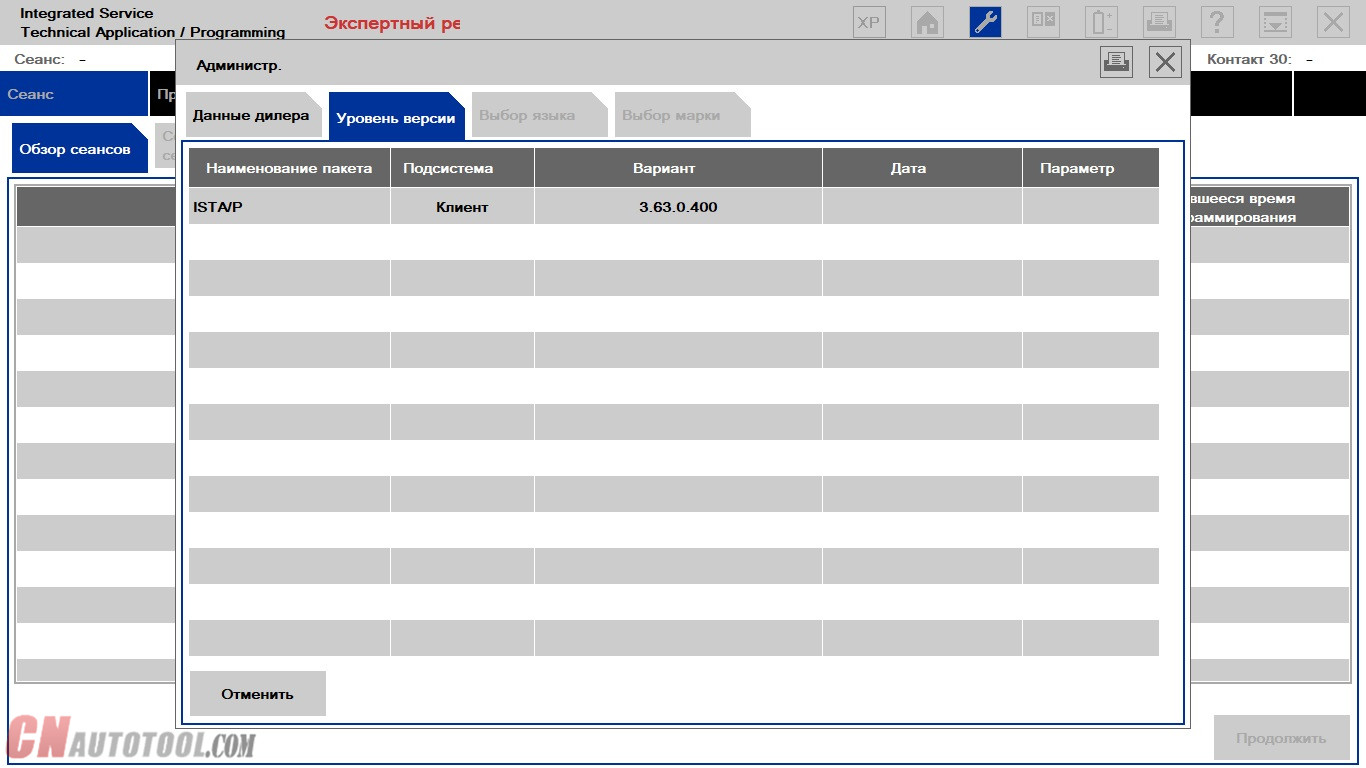
BMW_ISPI_ISTA-P_DAT_3.63.0.400.istap
BMW_ISPI_ISTA-P_SYS_3.63.0.400.exe
https://mega.nz/#F!5pIW1DyY!jYoL2TxwI1WyWfuudfN4nA
16-1
Note:  The software is not me, to use at your risk. I am not responsible for a bad use.
If you want use ICOM software with safety, i recommend this: http://www.cnautotool.com/goods-4828-ICOM+A2BC+for+BMW+with+Software+Plus+EVG7+Tablet+PC.html
I confirmed this works perfect in BMW diagnostic, coding and programming on Exx & Fxx cars.
16-2
Space required: A full installation of ista-p 3.63 without older installed versions needs 244gb space free.
Installation of 3.63.0 with installed version:
– 3.62.0 needs 103gb
– 3.62.1 needs 95gb
– 3.62.2 needs 114gb
– 3.62.3 needs 114gb
– 3.62.4 needs 114gb
– 3.62.5 needs 114gb
space free.
Vehicle coverage: From ISTA/P version 3.62.0 on (end of June 2017), the programming of the F, G, I series with ISTA/P will be gradually switched off.
Model series affected:
F, G, I series vehicles.
· Series F056 can no longer be dealt with as of ISTA/P 3.62.1.
· Series I001, F001, F025, S15A, S15C can no longer be dealt with as of ISTA/P 3.63.0.
FAQs:
Q: I have question about installing ISTA/P, clean and fresh install or installing over old version?
A: You have to uninstall the old version before.
Q: I have 110GB free, with istap file inside it will be free only 31GB and for installation is needed 230GB free, what now?
A: Purchase bigger HDD or download standalone.
Q: How did you install 3.63 with only 150gb? The installer would not continue…
A: First thought was to remove all data from ISTA/P but I have removed PsDZ and SQLiteDBs from Rheingold, I have tried and installer didn’t brake installation, instead of 240 GB it was only 137 GB needed.
Q: ISTA-P standalone? Sure? Where can i find this?
A: Here you go. 63.0 PSdZData – Lite and Full Versions:
Q: The folder pzd-data alone is not ista-p. how should it work? how to install the other files from ista-p?
A: You can better use Ista+ incl SDP because some Fxx are not supported in new Ista-p. Update Ista-p for Exx is not useful.
Q: I extracted all files then install bmw ispi ista p sys.. but nothing happen
A: You Need Loader.  Download ISTA-P Loader V6.3 Lite + activation key:
https://mega.nz/#!1tEQxIRJ!nJbc74da1LtbJQK1VAO4d02HMmtYu76Js5ZKLCp5PLI
UNBLOCK archive and extract with 7-zip
Password: beemerboy88
Or
use the easy way, install standalone version of ISTA+ and ISTA/P from here
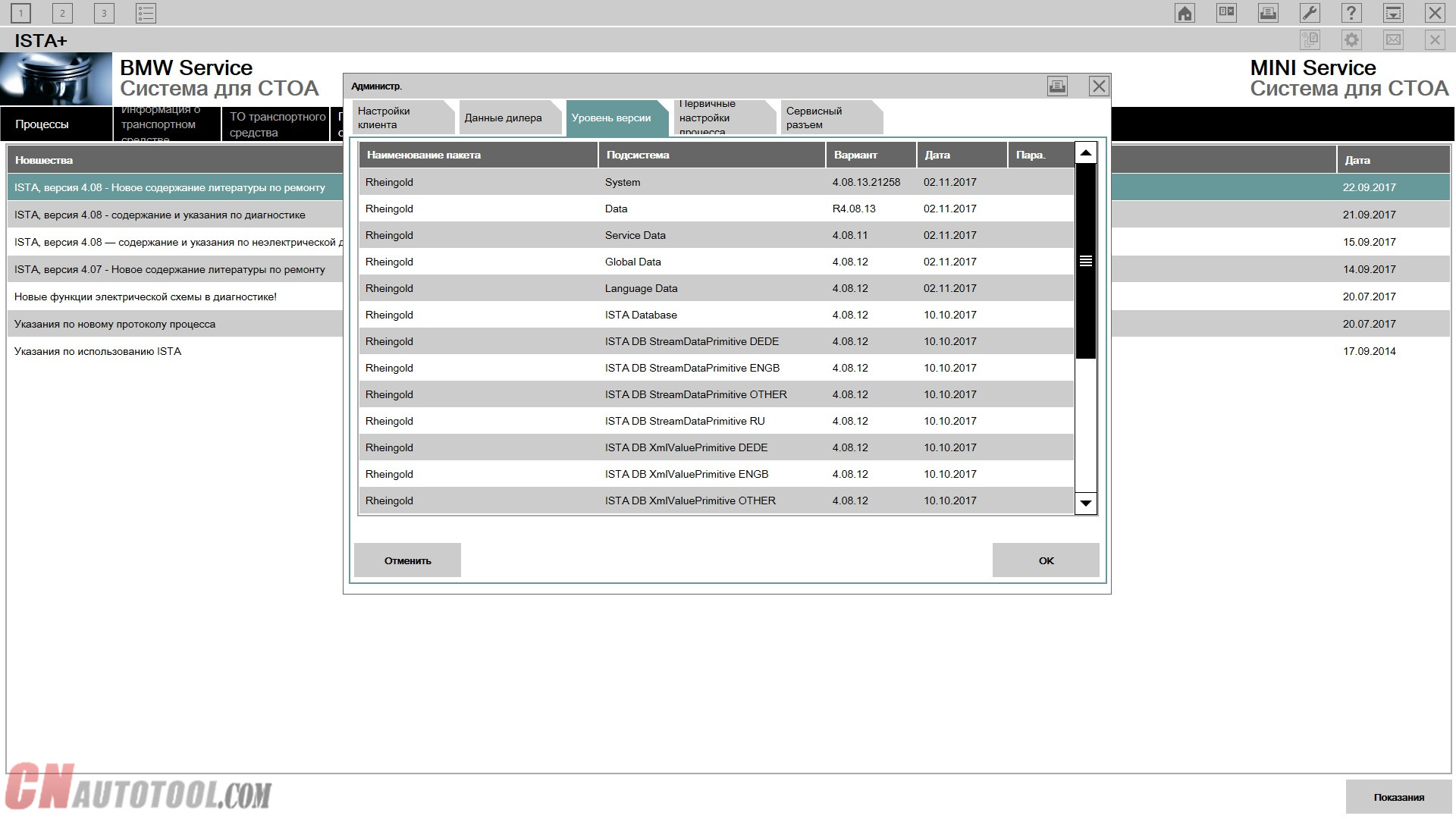
Standalone versions of ISTA-D 3.63.0.400 and ISTA-P 4.08.12:
16-3
For ISTA-P Loader thanks to beemerboy88.
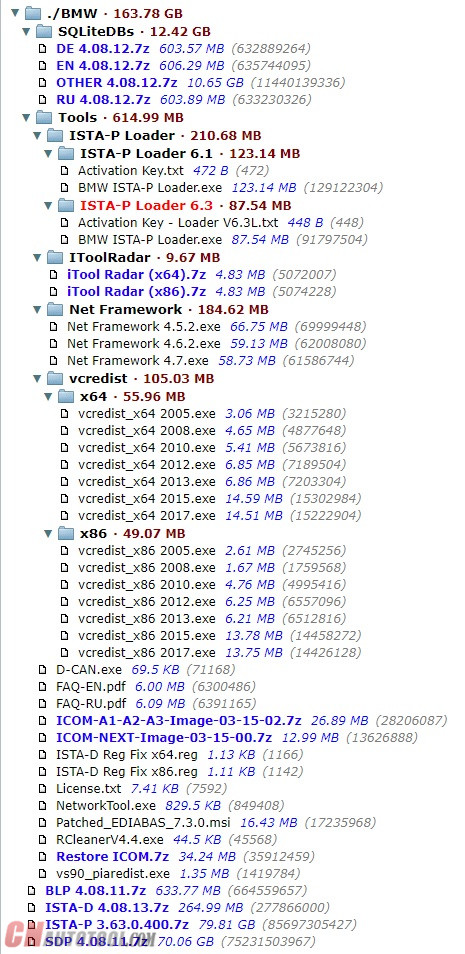
SQLiteDBs 4.08.12, including RU, EN, DE, OTHER.
For unpack archives use 7-zip 16.04 or higher.
All installed and ready to work.
ISTA-P work with old and new Loader from beemerboy88.
Instructions for installation, configuration and solution of possible errors, is located in the Tools folder (FAQ-RU.pdf and FAQ-EN.pdf).
To view pdf files, use Adobe Acrobat Reader DC.
Don’t ask password from pdf files!!!!
Read carefully FAQ in Tools folder!!!
ISTA-P – 147 GB
Service Data (SDP) – 104 GB
Logistic Data (BLP) – 2.63 Gb
FASTA & HW check disabled !!!
What’s included in torrent:
16-4
“standalone” ISTA-Ps were on torrents for some old versions. They are basically copies of folders taken from the installed version. Then you just paste them to your computer at standard locations and use beemerboy88’s launcher.
You can still make your own “standalone” ISTA-P by installing it to a computer which has more disk space and then copy to the computer with insufficient disk space. Just be sure to uninstall old version first, else it will be a mess and you will never be able to uninstall them.
You also need to take into account that ISTA-P ON https:/www.cnautotool.com creates multiple temporary folders/files for each session and they may take some considerable amount of disk space. I would not risk using ISTA-P on a computer which has less than 10-20Gb of space left after pasting such “standalone” version.

BMW ICOM A2+B+C WIFI Setting Guide

Here is a tutorial on how to set WIFI for BMW ICOM A2+B+C diagnostic & programming tool, hope it helps.
STEP1:make sure you ICOM A2 have a WIFI card
go to 169.254.92.38/60080
user:root
pass: NZY11502
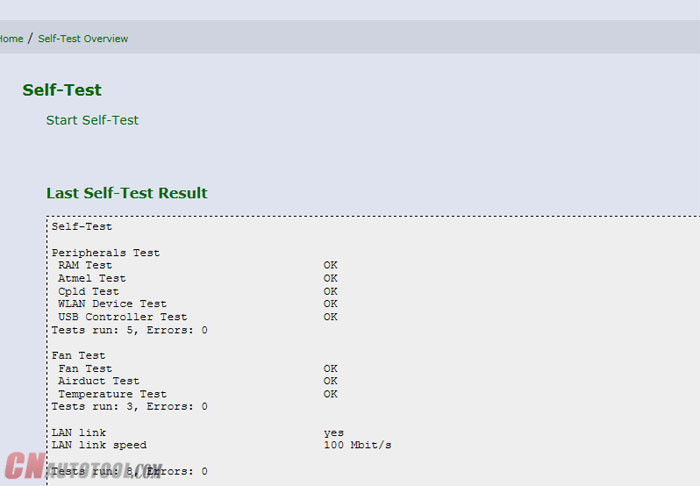
make a self-test, than you can got the test result , the WIFI function must be OK
15-1
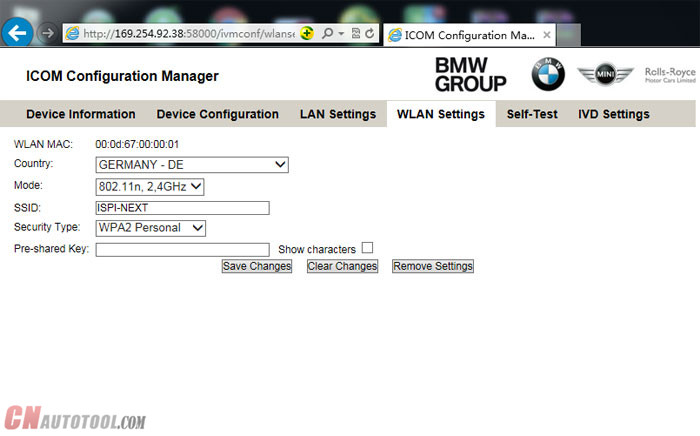
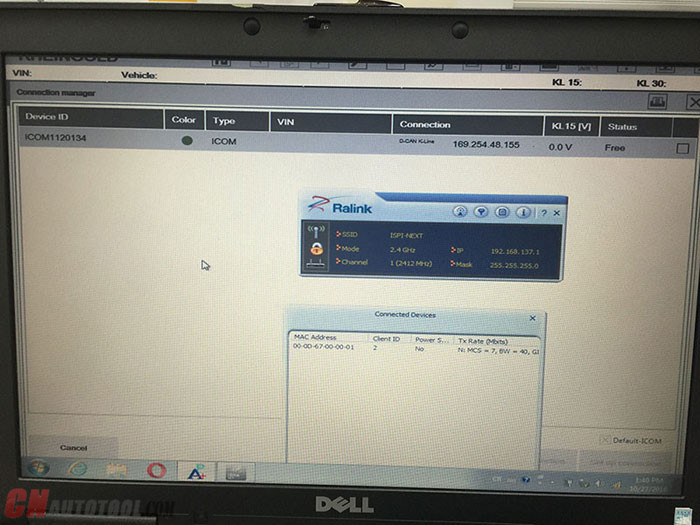
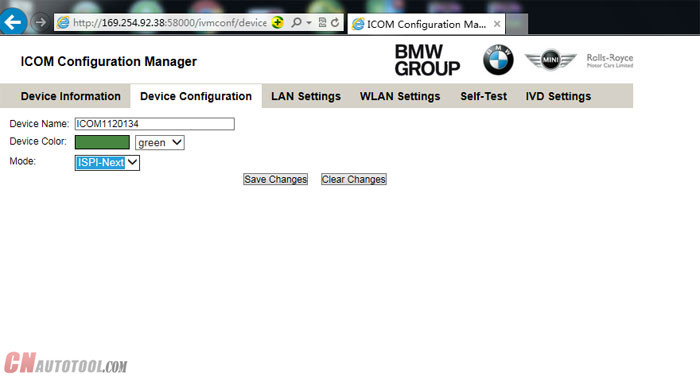
STEP2:Go to 169.254.92.38/58000 make the WIFI setting, ( the bmwicomshop.com bmw ICOM a2 WIFI version no need setting)
a . Set the mode to ISPI-NEXT
15-2
b . SET WLAN , SSID name ISPI-NEXT PASS:12345678 save
15-3
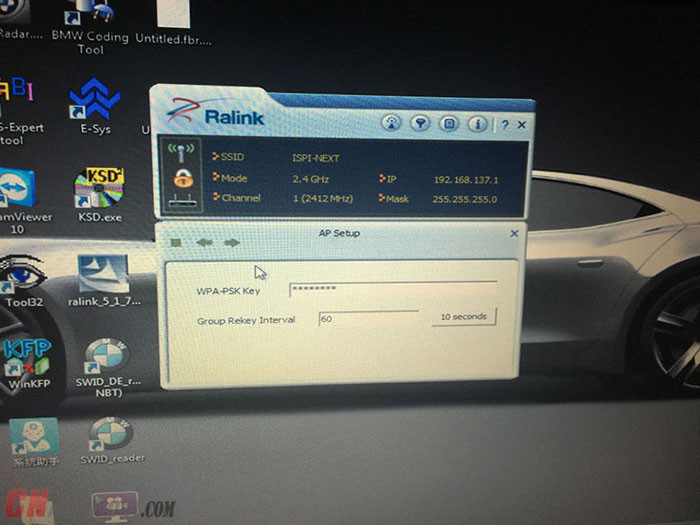
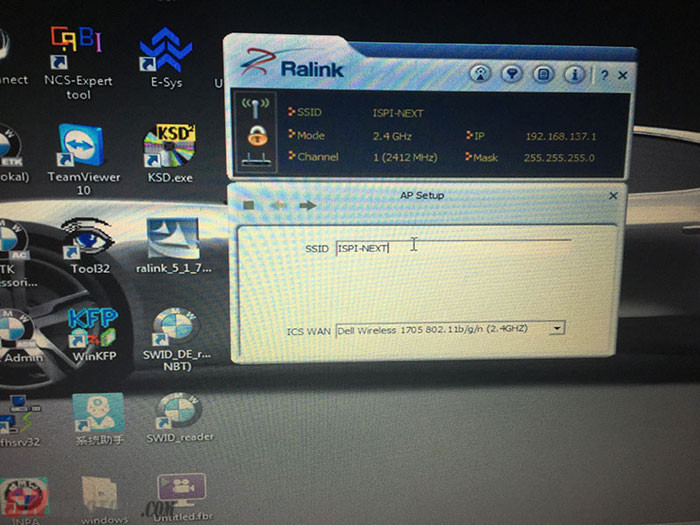
After the setting on ICOM is done , let’s make computer setting, suggest buy the a USB WIFI card , then set it to AP mode
Then set same SSID name as ICOM Next; ISPI-NEXT
And choose WSP2 method , enter same password :12345678
15-4
15-5
Then OK, unplug ICOM LAN cable, restart ICOM waiting it connect to laptop WIFI!
15-6
Then start ISTA/D make diagnostic. Enjoy!

How to Use BMW Rheingold ISTA to Do Programming and Coding

BMW Rheingold ISTA is a software program used by BMW technicians for programming and coding various modules in BMW vehicles. It is an essent...